
How to Set Up a QR Jukebox in Your Bar in About a Minute
Turn the TV on your bar wall into a jukebox guests control by QR. Here is the real step-by-step setup — account, QR tags, screen, sound — and the mistakes that cost evenings.
- Who it is for
- Bar and restaurant owners who already have a TV and want guests requesting music by QR by this week.
- Search intent
- transactional
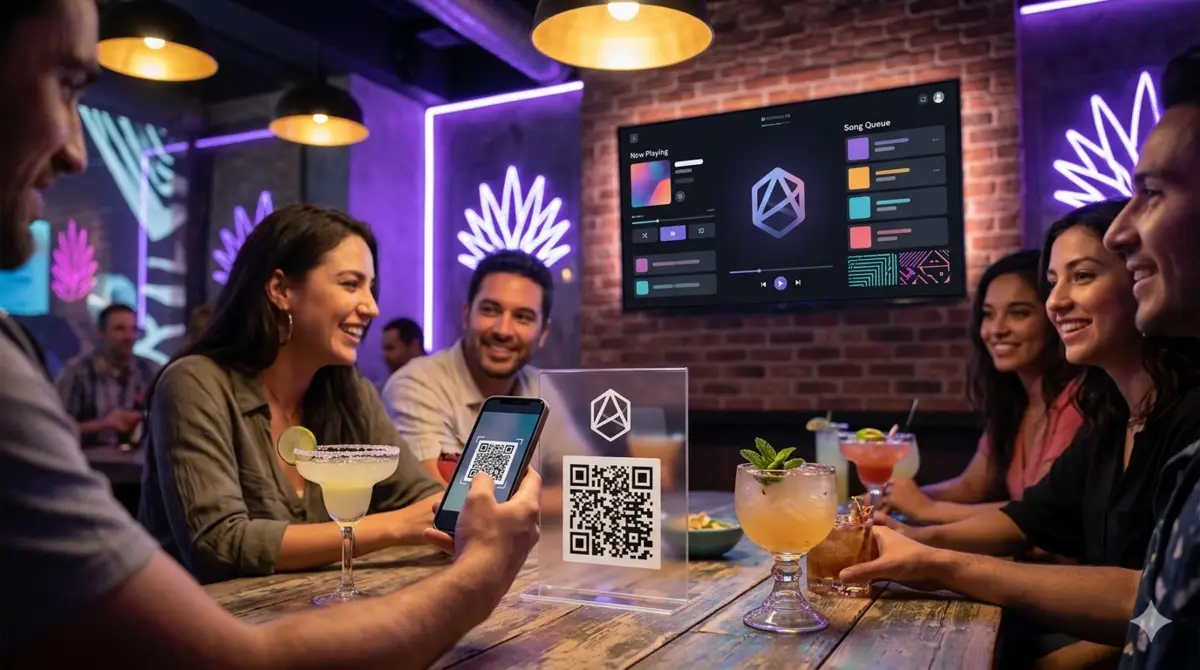
Setting up a QR jukebox on the TV of a bar is small — much smaller than people expect, because there is no hardware to install and no technician to wait for. This guide walks the steps in the order they should happen, from creating the account to the first real request from a guest's phone.
Everything below describes Rockola.app specifically, but the shape applies to any QR-jukebox service: the account, the QR for the tables, the screen, the sound, the rules.
Step 0: what you need before you start
Collect these before opening the dashboard — none of them costs money:
- A TV with a browser (or a smart TV, a Fire Stick, a laptop with HDMI). It needs an internet connection and a browser or an app to display the player page.
- A way to get the audio onto your sound system. The usual path is HDMI from a device to the TV, and the TV's line-out (or the device's) into your mixer or amplifier. If your TV is an old one with no line-out, use an HDMI audio extractor (~$15) between the source and the TV.
- The business name and an email — that is the entire registration form.
That is the whole shopping list. The old model needed a cabinet, wiring, a technician and a music catalog contract; here the missing ingredient is only the QR.
Step 1: create your venue on the dashboard
Open /en/register and fill the name of the venue and an email. That is the account: the platform generates your venue's URL, its admin login and the QR codes.
Two decisions worth making now, not later:
- The plan. You can start on the 30-day free trial (no charge until it ends) with any plan and keep full access while it lasts. The Starter plan runs a jukebox; Professional adds karaoke, the touchscreen kiosk and ads between songs. You can switch before the trial ends without losing anything.
- The currency. The subscription is billed in USD if you are in the United States or Canada — the four plans are priced in USD, CAD and more, and the currency is fixed on the subscription (it does not change by itself if someone opens the panel from another country).
Step 2: get the QR codes to the tables
The dashboard prints QR codes in two sizes: one per table and one big one for the bar counter. Print them (or reuse a phone to show them) and place them where a guest can scan them without leaning over other people's drinks.
Two real-world placement rules:
- One per table zone, not one on the wall. The request is a group ritual: people at the table decide together and one of them scans. A QR on a wall means one person walking over to it, alone.
- Check the size. A QR the size of a thumb on a phone screen is verifiable; the same QR as a sticker on a dark wooden table may not scan. Keep a margin of clean background around it (the platform pads it for you).
What the guest actually sees
Scanning opens your venue's page in the phone browser — no app, no account creation, no permission pop-ups. They see the queue that is already playing, a search bar and the songs from the catalog. Tapping a song adds it at the back of the queue, and the whole bar sees the same order on screen.
Step 3: open the player on the screen and connect the sound
The account gives you the player URL (something like rockola.app/your-venue/player). Open it on the screen — fullscreen — and that's the jukebox. It reads the same queue the phones write to and advances automatically when a video ends.
On the sound side, the rule is: the TV's speaker is never the venue's speaker. Wire the TV's audio output (or the source's) into the mixer line in, and leave the volume control on the mixer where the staff can reach it. If your TV only has headphones out, that's fine — it's still a line output; just keep the TV volume at 100% and control everything downstream.
If you have multiple screens around the venue, the player page mirroring (HDMI splitter or casting) shows the same queue across the room. The venue decides: one screen is enough for a small bar; busy rooms do better with two.
Step 4: set the rules before guests arrive
This is the step people skip and regret at 11 PM on a Saturday. The dashboard gives you controls that exist precisely because the evening can go wrong if they are off:
- Music policy. Blacklist the artists or songs you do not want on the floor. A blocked request is rejected in the moment, not pulled halfway through.
- Queue limits. Cap how many songs one guest can add and how far ahead the queue can grow, so a table cannot monopolize the night.
- Credits and codes. You choose whether requesting a song costs a credit. Generate QR/sticker credit codes (FREE10, VIP…) and hand them out as a promotion: they cost you nothing until used and they push the participation you want.
- Schedule. The jukebox can turn itself on at 6 PM and off at closing on its own — no one has to remember the login.
If the venue runs on Modo Gratuito (free mode), requesting costs nothing at all; the economics then come from guests staying longer, and the dashboard shows you that story in the analytics of the Premium plan.
The mistakes that cost an evening
Three failure modes are worth naming because each one is a one-minute fix that saves a night:
- The screen turned off at closing and nobody re-opened the player. Fix: leave the device powered 24/7, or schedule daily automatic power-on and set the player page as the home screen of a cheap sticks/Android device.
- Wi-Fi where 30 phones at once crawl. The jukebox lives or dies with the venue's connection. Fix: keep the screen on ethernet when you can, or on a separate network from the POS.
- A first request that sounded bad on the system. Because there is no technician, the owner discovers the room's sound signature on the first night. Fix: the sooner you play 3–4 songs across genres at typical weekday volume, the sooner you know what the room is like at volume.
Conclusion
The setup is: account, QR on the tables, player on the screen, sound into the mixer, rules configured. Realistically under an hour total, with the first table requesting before the night is over. If you want to feel what a QR venue is like from the guest side before spending anything, request a song in the live demo — or check whether your city is on the coverage pages.
Frequently asked questions
Which devices work as the player screen?
Any screen with a browser and internet: a smart TV, a Fire Stick or Chromecast with Google TV, a laptop or mini-PC with HDMI, even a tablet in kiosk mode. The more used the device, the more it's just a cheap Android box.
Does the QR jukebox work without WiFi?
No: the guests' phones and your screen need internet between them and the service. If the venue has no internet, a QR jukebox cannot run — the old coin machine was installed when that was the only option.
Do guests need a credit card or account to request songs?
No. The guest opens the page from the QR, searches and requests, with nothing to sign up for. Card and account belong to the venue owner, on the subscription side.
Can I use the QR jukebox with a projector on a private event?
Yes. The player URL works on any output with a browser, and the generator usually covers credit-free private events where the host pays a flat fee — no coins, no credits per song.
What does it cost to set up?
Nothing to buy: the TV is assumed and the subscription is the cost. If the TV has no line-out and you need an audio extractor, it's around $15. The account itself is free for the 30-day trial.
See it first
Rather see it running before you decide?
No call to book and no waiting on a reply: create your account, activate the 30-day trial and watch it working in your own venue.